Command+Tab alternative for macOS

App switching that doesn't break your focus.

Every app gets a fixed position and a fixed key, so switching becomes muscle memory instead of a search.

Download Spatial Dock EX

Free · macOS Sonoma 14.0 or later

Prefer the Mac App Store? Get Spatial Dock · Compare editions

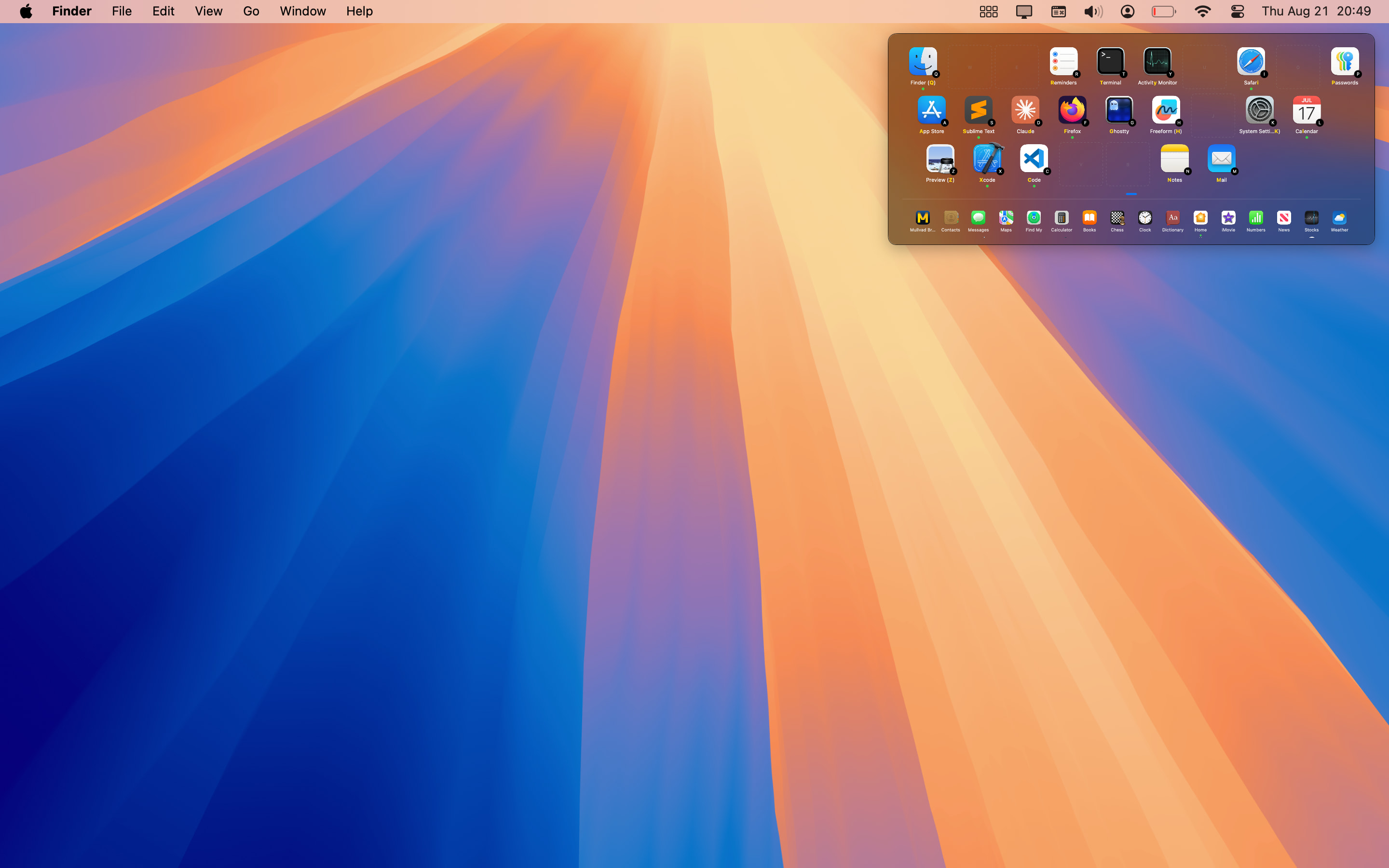
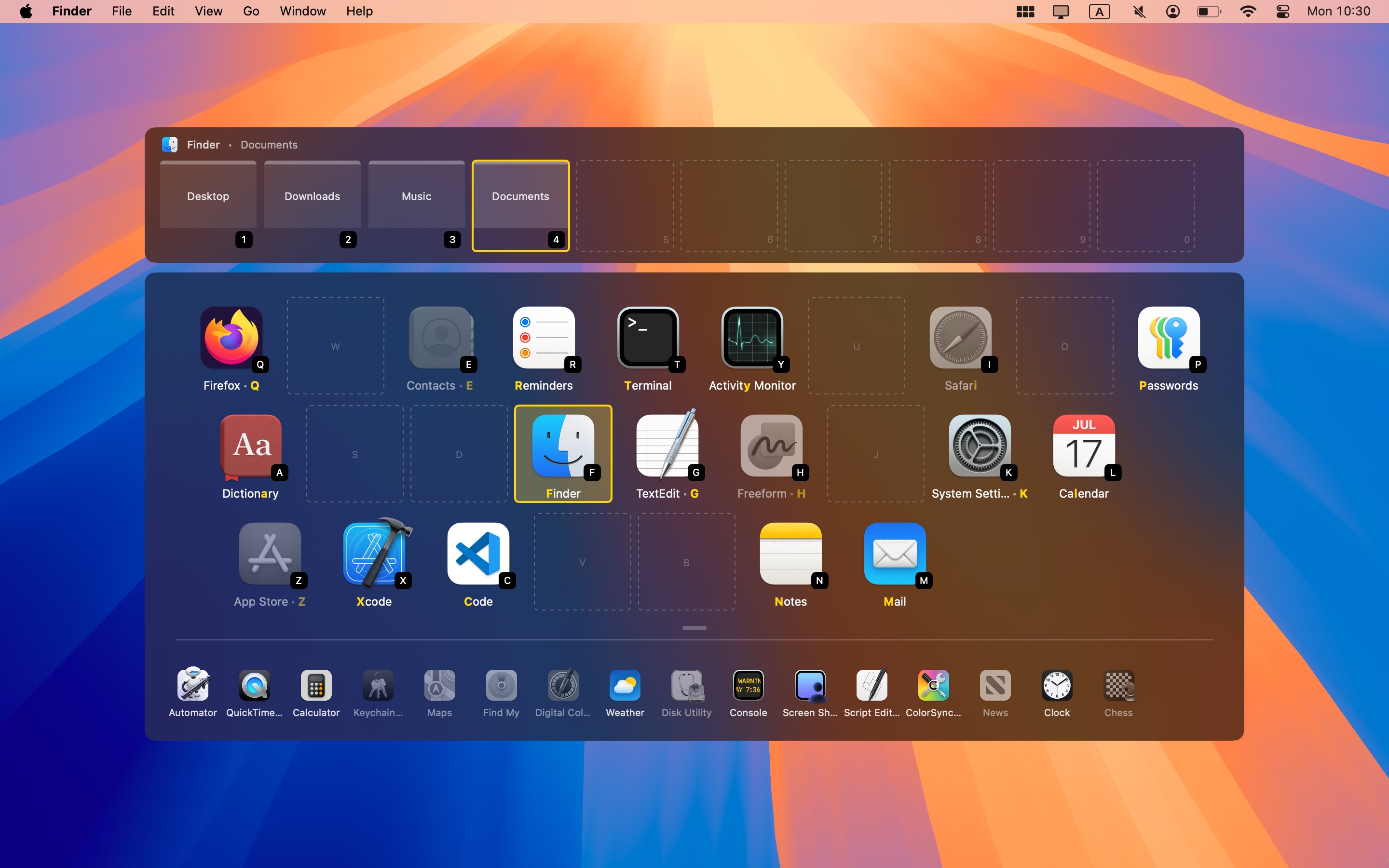
The Spatial Dock EX overlay open over a macOS desktop: Finder's windows on number keys at the top, apps on their letter keys below, and the secondary dock along the bottom
Hold a key and the overlay shows every app on the key that selects it, in the same place every time. Let go and it disappears.

The idea

You usually know which app you want. Finding it is the slow part.

The native macOS switchers keep moving your apps around: Command+Tab sorts them by what you used last, and the Dock shifts as apps open and quit. So the apps you use all day are somewhere different each time you switch.

Spatial Dock EX never reorders anything. Each app keeps its position and its letter, running or not, every session. Learn it once and build muscle memory.

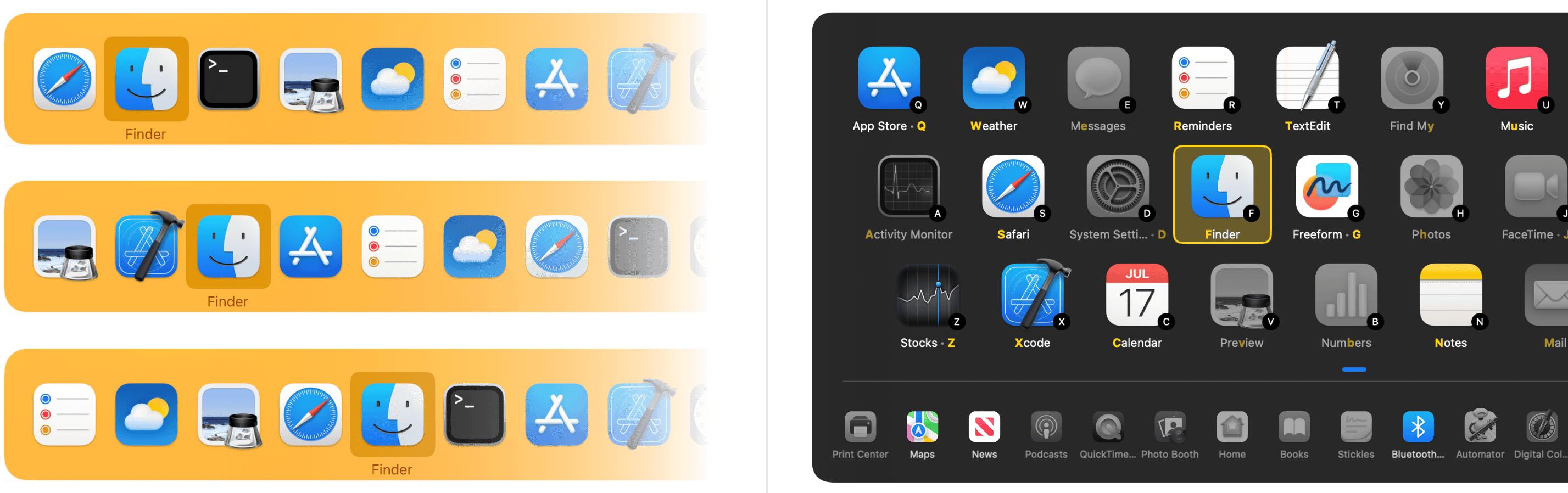
Three Command+Tab sessions with Finder in a different position each time, beside three Spatial Dock sessions with Finder always in the same position
With Command+Tab, Finder is somewhere new every time. In Spatial Dock EX, Finder never moves.

How you use it

Hold Right Command ⌘ press a letter switch instantly
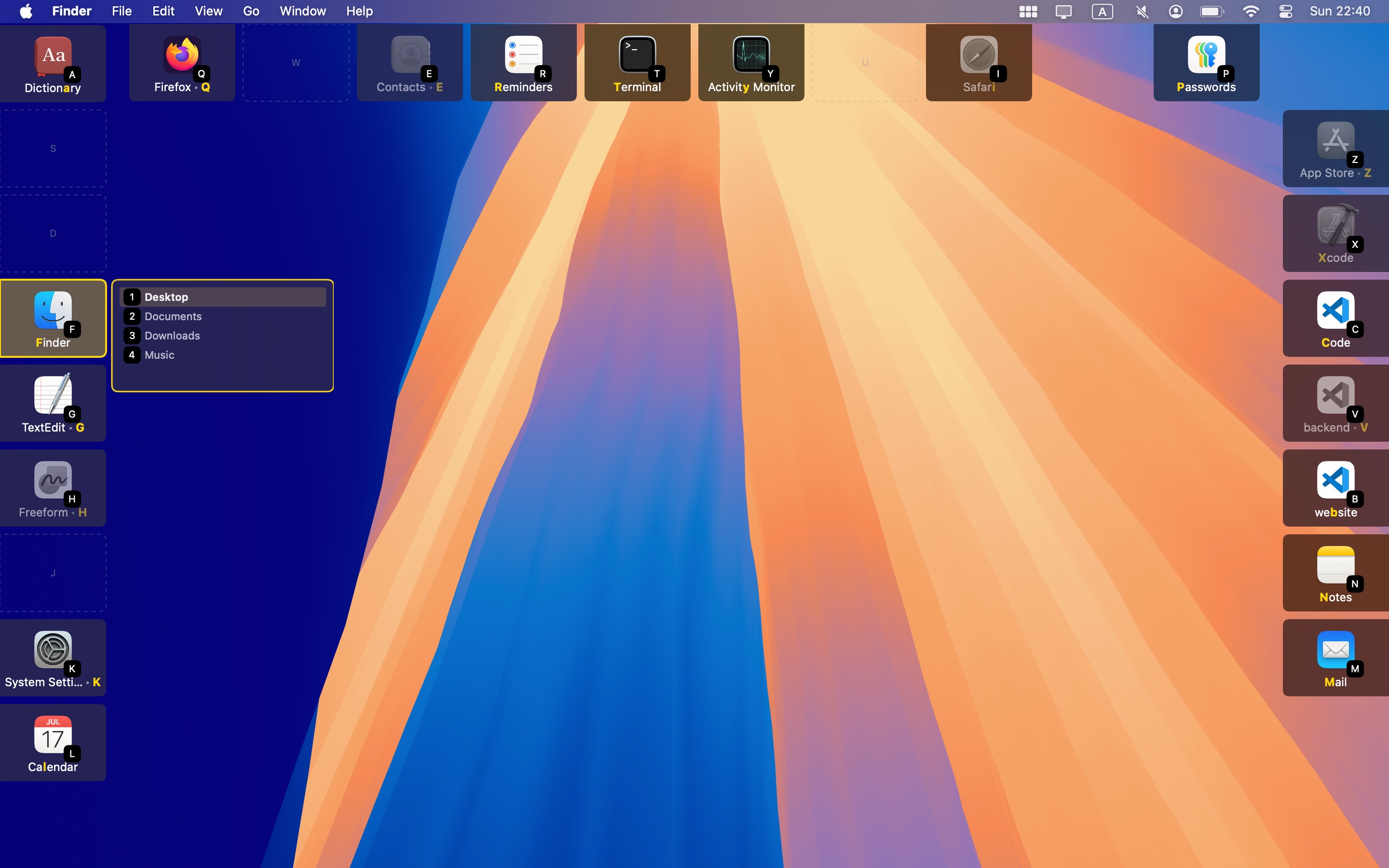
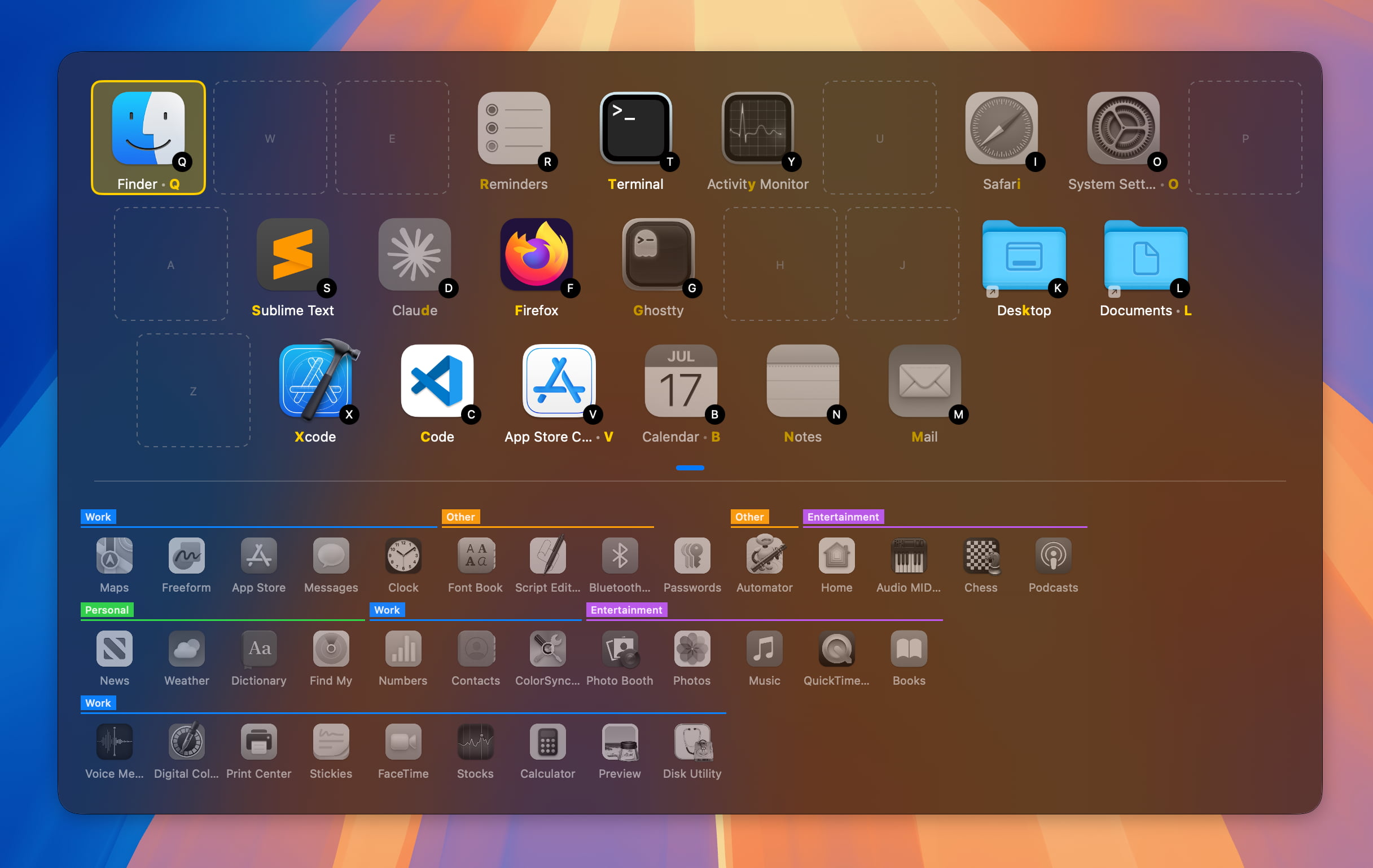
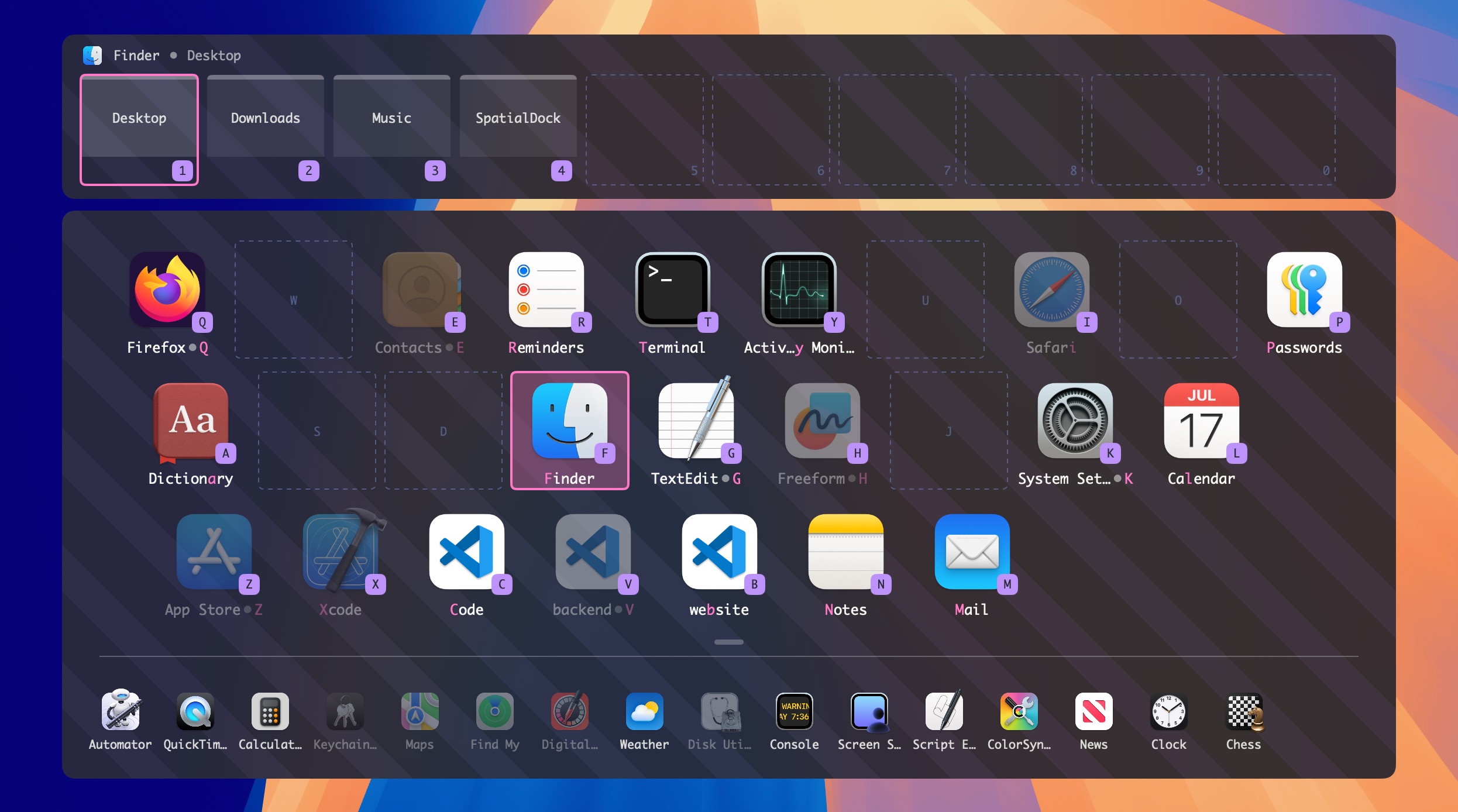
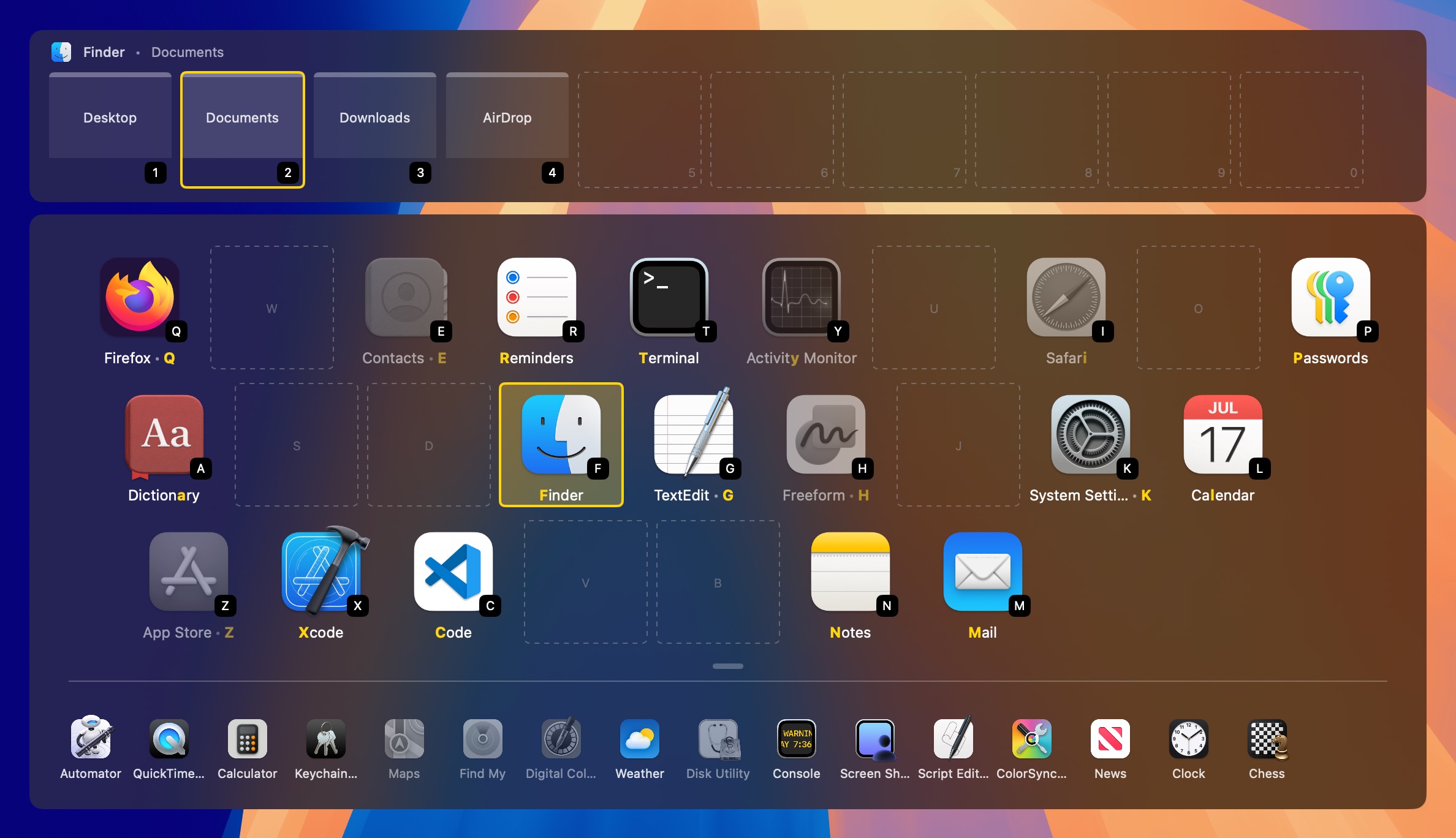
The overlay with Finder's open windows on number keys at the top, the primary dock of apps on their letter keys below, and the secondary dock of other apps under the divider

Windows of the selected app

Primary dock

Secondary dock

Dimmed icons are non‑running apps.

Windows (top): the selected app's open windows, on number keys.

Primary dock (middle): your everyday apps, on letter keys.

Secondary dock (bottom): every other app, under the divider.

Dimmed icons are non-running apps.

Primary dock

Your everyday apps, each on a letter you choose. The same key launches the app or brings it forward, so you never check whether it is running.

Secondary dock

Every other app you use, a , away. Move with its letters, the arrow keys, or Tab, and show more rows or only running apps.

WindowsSupporter

The selected app's open windows sit above the dock, each on a number key. Press the app's letter, then a number, to go straight to that window.

Why switching is faster

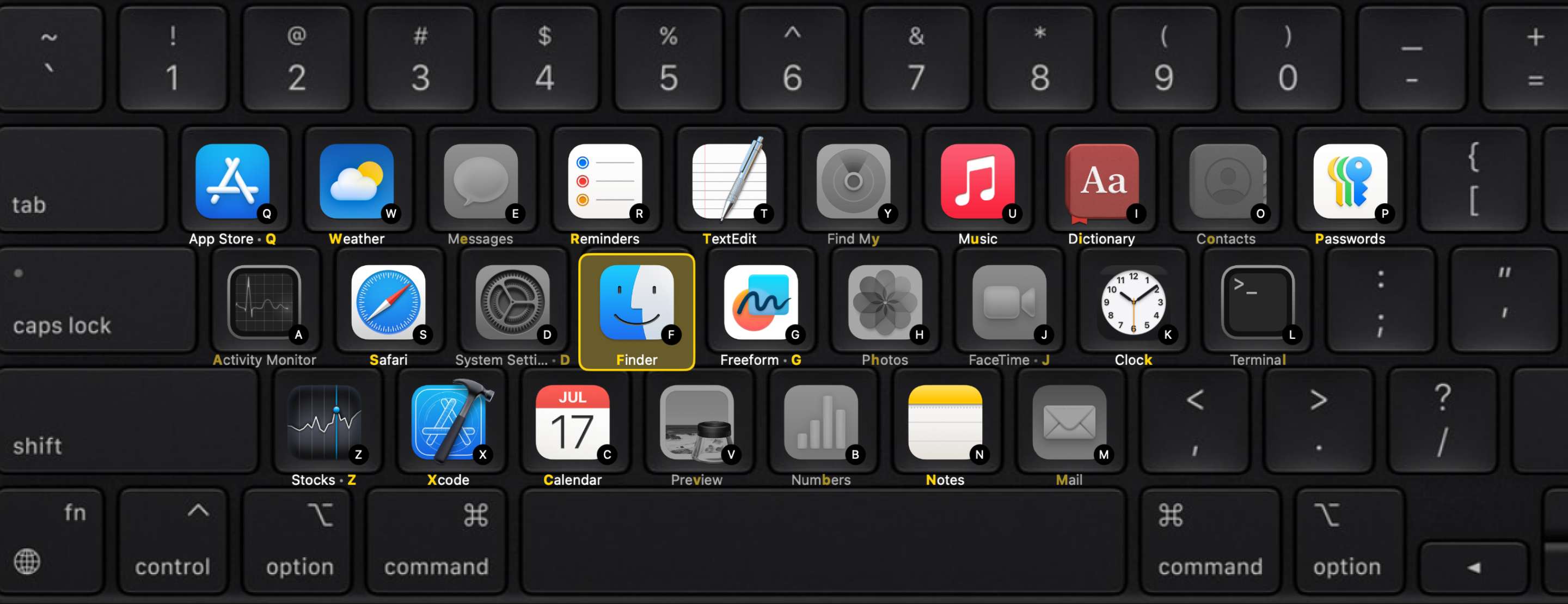
The primary dock laid out to match a keyboard, each app sitting on the key that selects it
Your keyboard becomes an app deck.

Stable positions build spatial memory

Each app keeps the same position across sessions. After a few days your hand finds it the way it finds a letter when you touch-type, without looking.

The screen matches your keyboard

The grid mirrors your keyboard layout, so an app's key is where the app sits on screen. The shortcuts are easier to learn and harder to forget.

Direct access replaces cycling

Command+Tab makes you read a row of icons and press Tab until you land. Your main apps have their own key instead: one press, the same one every time.

Four ways to open it

There are several ways to open Spatial Dock EX. Your apps stay in the same place, and their letter shortcuts work with every method.

Command+Tab

Spatial Dock EX can replace the macOS switcher. The gesture is the same: hold Command, press Tab to cycle recent apps, release to switch. The difference is that apps stay in fixed positions, and you can press a letter instead of cycling.

Off by default. Needs Accessibility permission.
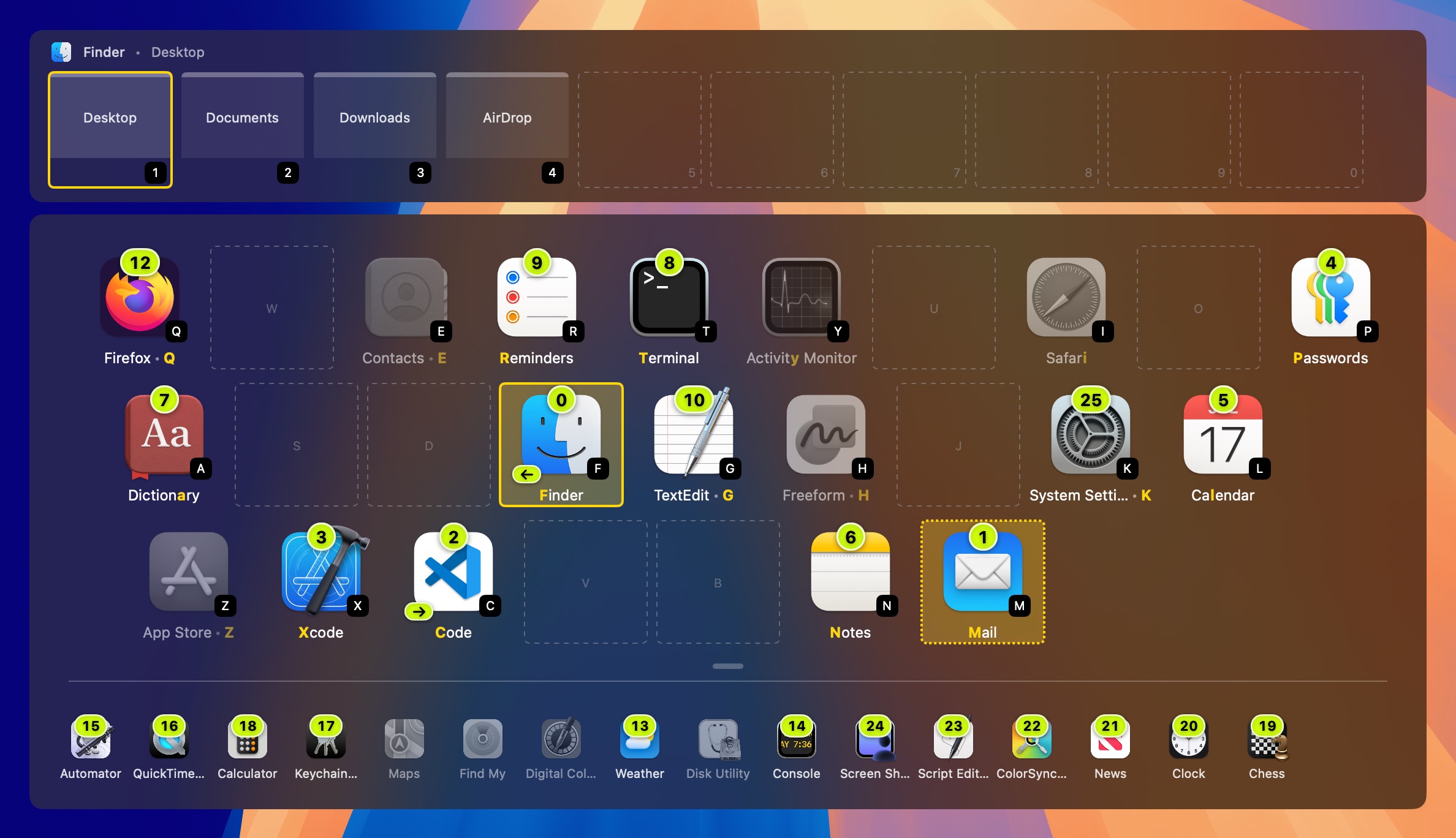
The overlay opened with Command+Tab: every app keeps its letter key, numbers show the order of recent apps, and the selection sits on Mail, the next app

Modifier key

Hold Right Command, or another modifier you choose, and press an app's letter.

Option+Tab

Cycle recent apps with Tab and Shift+Tab, with optional numbers showing the order. No permission needed.

Custom shortcut

Any key combination, including Caps Lock remapped with a tool such as Hyperkey.

Windows and projects

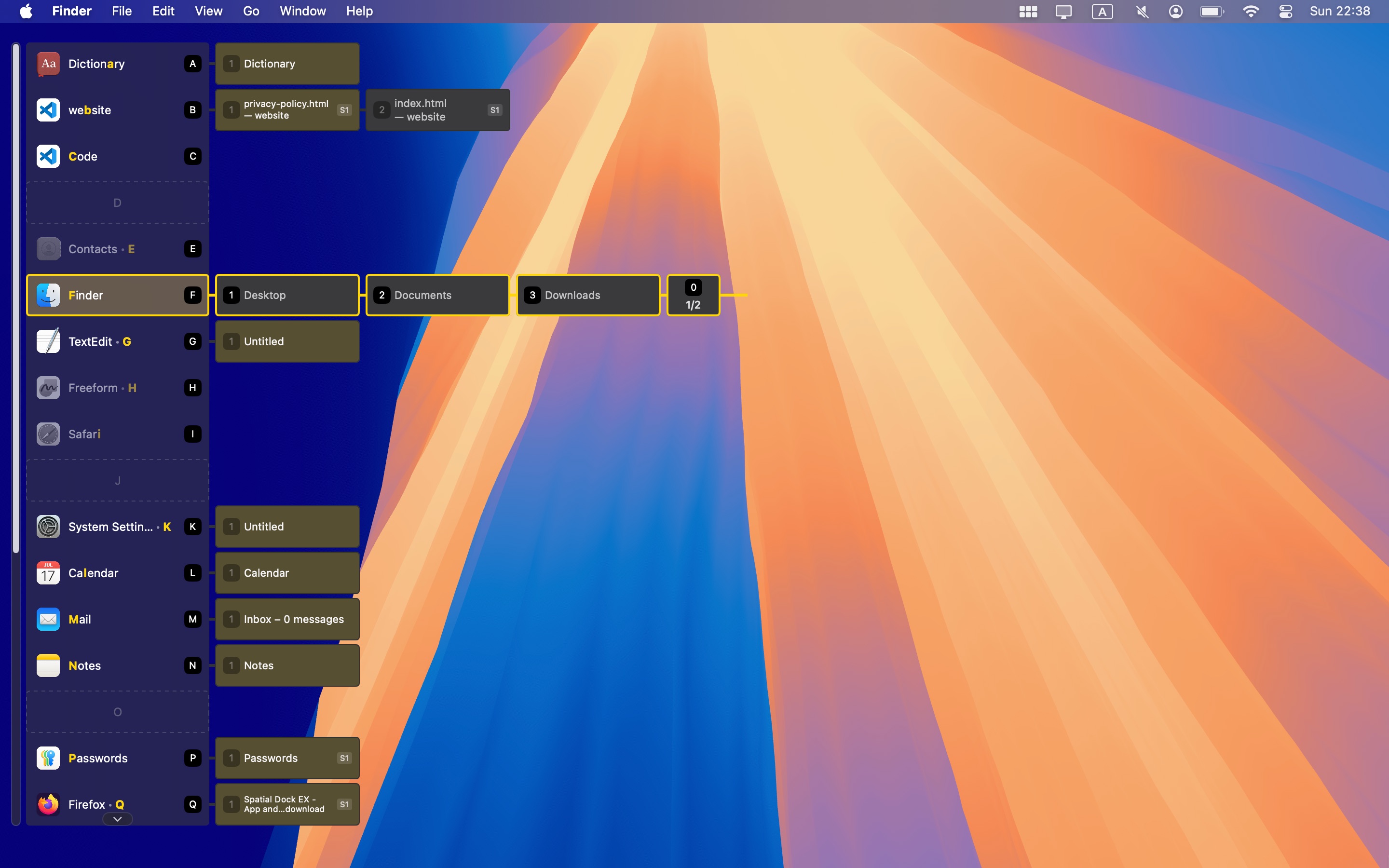
Spatial Dock EX also gives you direct access to app windows. With a Supporter license, the same fixed-position approach applies to windows: press a shortcut to reach the one you want, without cycling.

Window Switcher

An app's open windows are visible in the overlay, each with its own number-key shortcut. The third Finder window is Right ⌘ F 3, with no cycling through the others.

  • Search matches window titles, so a half-remembered document is one query away
  • Press an app's key again to cycle its windows
  • Current Space only, or every Space; turn it off for apps you don't need it in

Project Groups

An editor with three projects open is one icon hiding three contexts. Project Groups gives each project its own dock entry and key, so you switch to a project as directly as to an app.

Projects are recognized from window titles, using a preset or your own pattern.

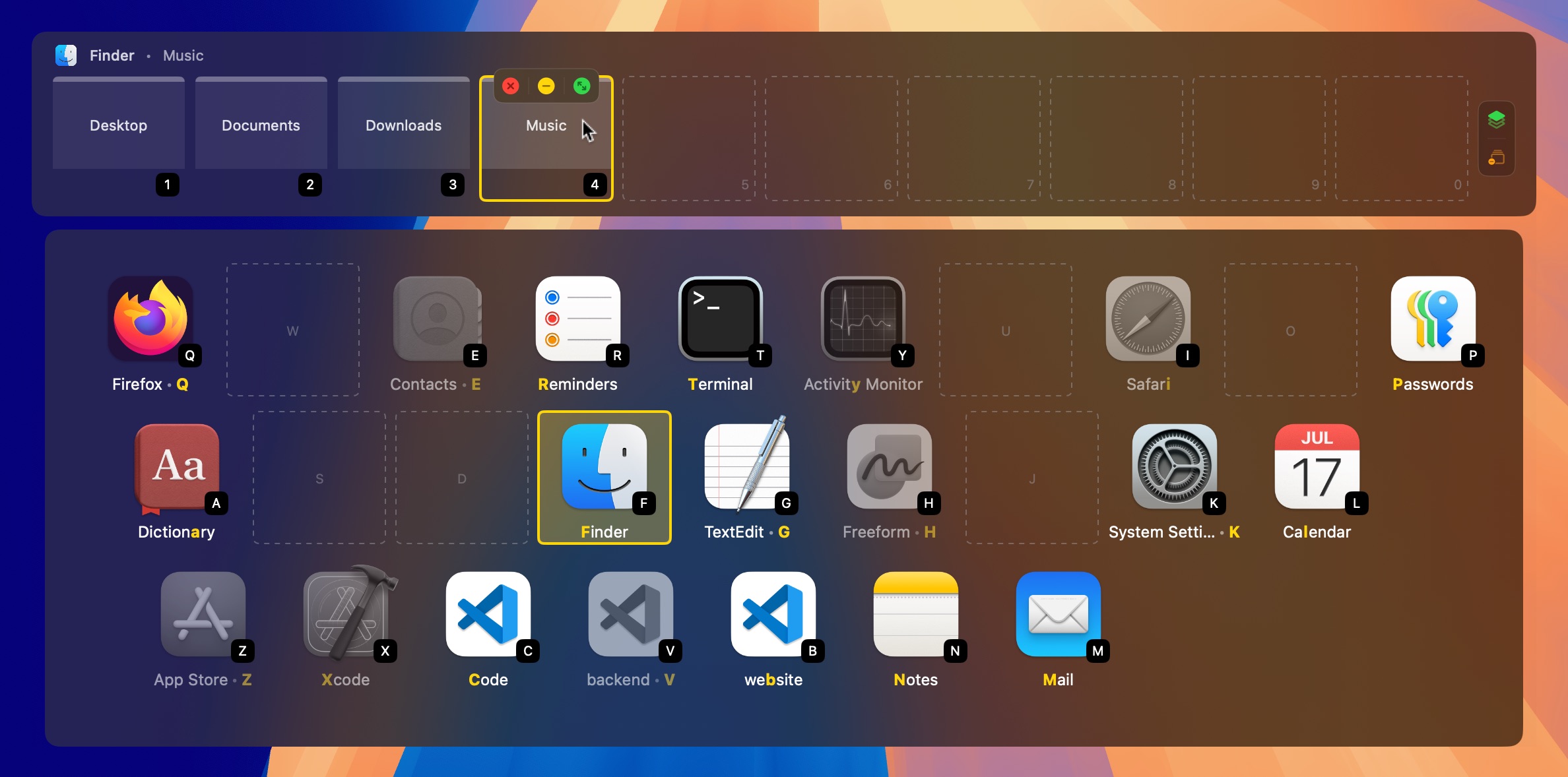
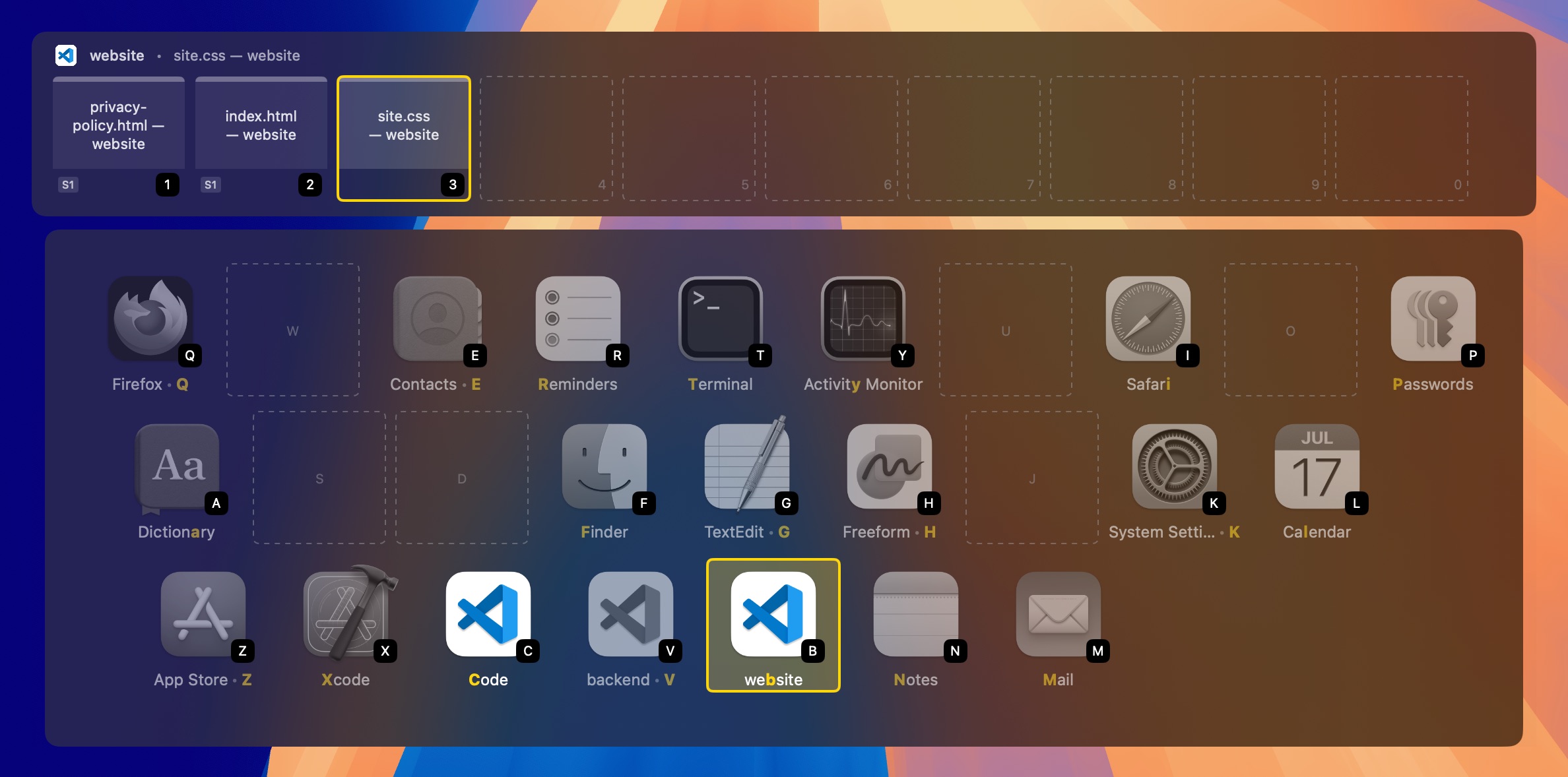
Visual Studio Code split into three dock entries, Code on C, backend on V and website on B, with the website project's open files on number keys above

Both need macOS Accessibility permission, used only to read window titles and to act on windows when you ask.

Find any app or window

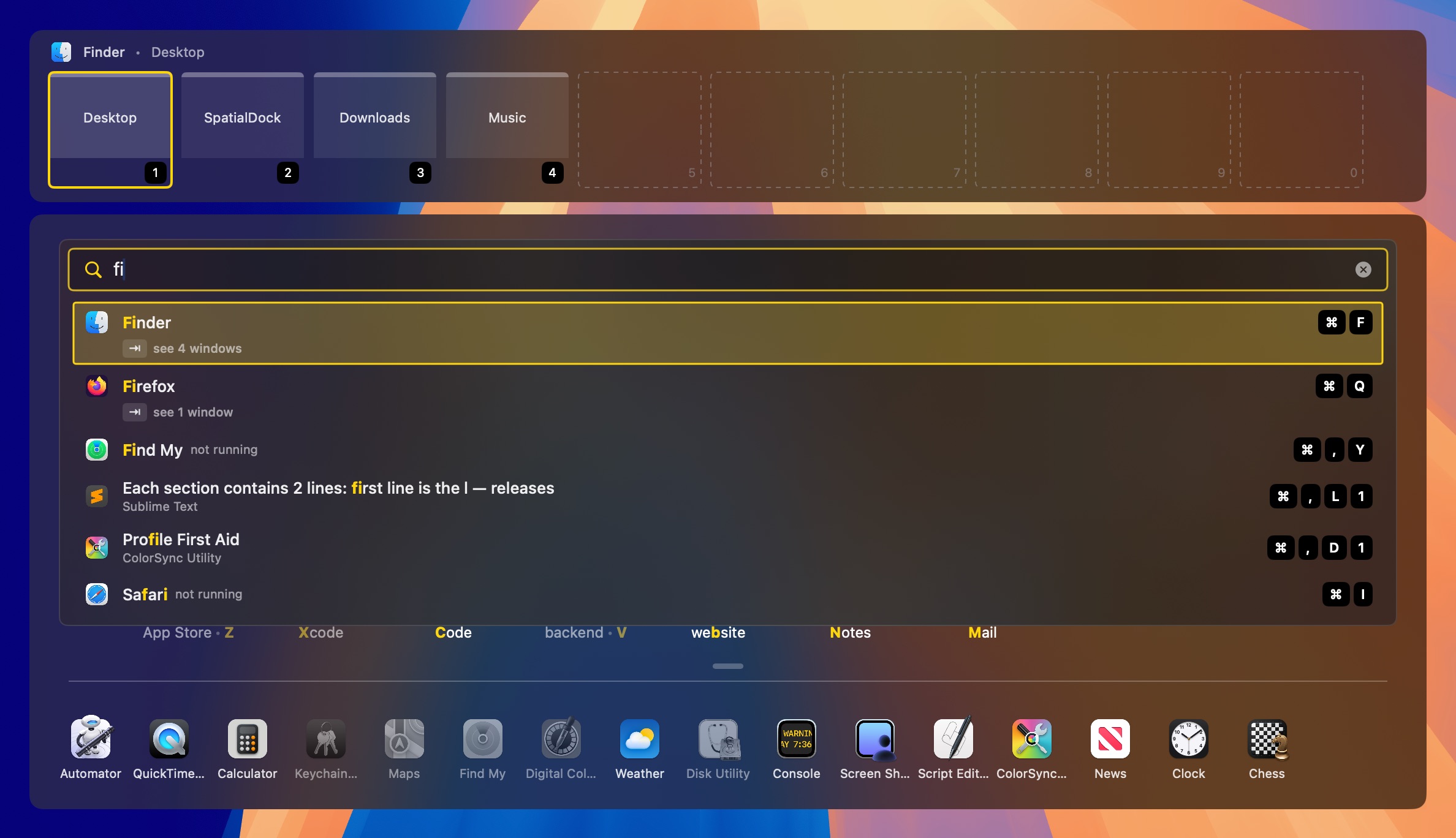
Not sure where an app or window is yet? Search finds it by name and shows the keys that reach it directly.

Search in the overlay with the query fi: Finder, Firefox and Find My, two windows whose titles match, and Safari, each with its keyboard shortcut on the right
Two letters find apps and windows, each shown with the keys that reach it.

A few letters are enough

Matching is fuzzy and covers every app, running or not: f i finds Finder, Firefox and Find My.

Windows by titleSupporter

Window titles match too, so you can reach a document, a page or a project by name. Press Tab on an app to list its windows.

It shows you the key

Every result shows its direct shortcut, like Right ⌘ F for Finder. Search gets you there today and teaches you the key for tomorrow.

Three layouts

Pick the shape that suits your screen. Each one keeps every app in a fixed place.

Keyboard Grid

Apps sit on a grid that mirrors your keyboard, each on the key that selects it.

It follows your layout, including AZERTY, QWERTZ, Colemak, Dvorak, split keyboards and Cyrillic, with your own key labels if you want them.

Custom keyboard layout editor used to match a physical keyboard

Edge

Apps line the edges of the screen, so your windows and desktop stay visible while you switch.

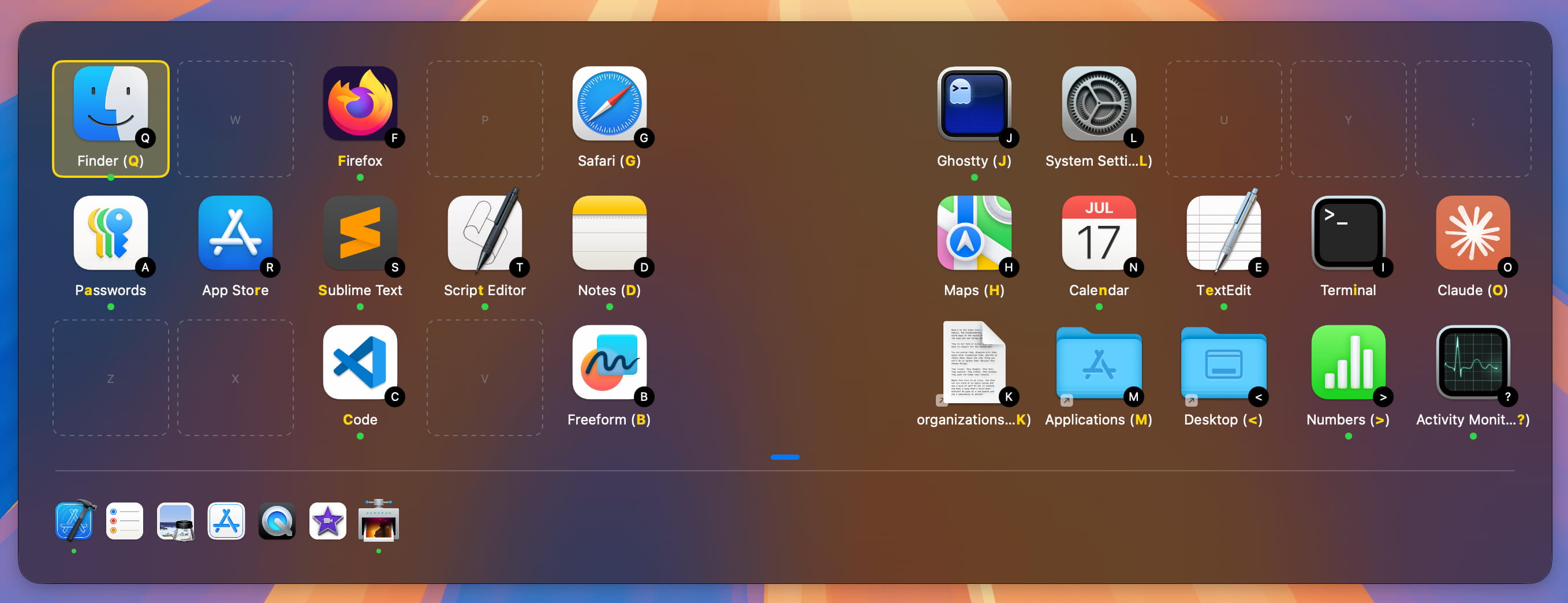
The Edge layout: apps along the left, top and right edges of the screen, with Finder's windows listed beside it

Board

One column of up to 50 fixed slots, each with its own key, along the side of the screen. Apps without a slot wait in the Arrivals area at the bottom.

With Window Switcher, each app can show up to nine fixed window columns beside it.

The Board layout: a column of apps along the left edge of the screen, each with its key, and each app's open windows in fixed columns beside it

Make it yours

Choose what the overlay holds and how it looks. Items markedSupporter need a Supporter license.

More than appsSupporter

  • Put files, folders, websites, and custom URL schemes on their own keys
  • Group the secondary dock into categories
  • Give apps and links custom icons
The overlay with Desktop and Documents folders on their own keys in the primary dock, and the secondary dock grouped into labelled categories

Themes and typography

  • Follow System, Spatial Dock Light, and Spatial Dock Dark
  • 15 more palettes, from Nord and Dracula to Tokyo Night and SolarizedSupporter
  • Blur material, patterns, and your own background imageSupporter
  • Any installed font, with its own text scaleSupporter
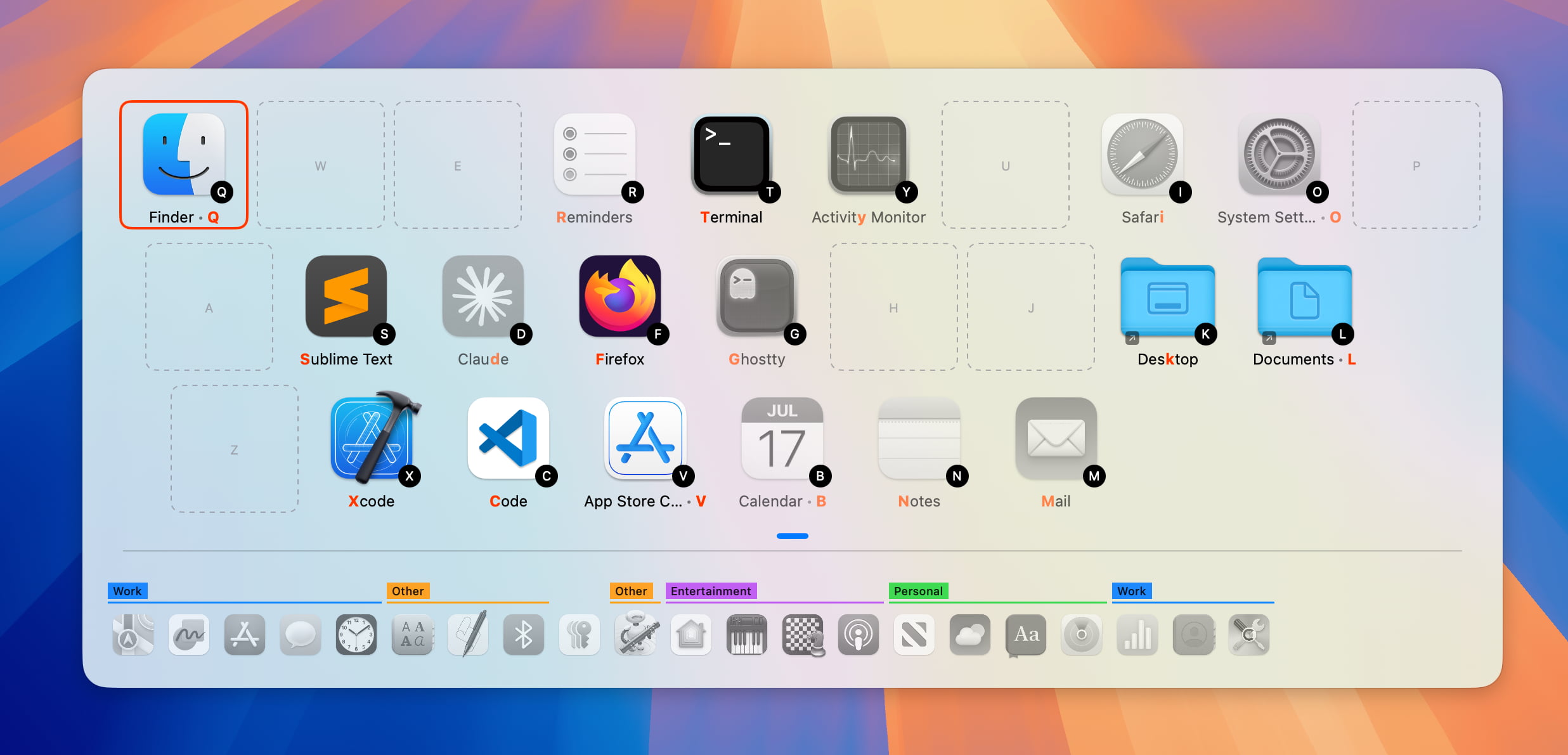
The overlay in a light theme The overlay in a purple palette with a diagonal stripe pattern and a monospaced font

Fits your screens

  • Set the overlay's position and size
  • Choose which display it appears on
  • Show or hide labels, and set the highlight color
Settings for the overlay's window position and size

Close mode

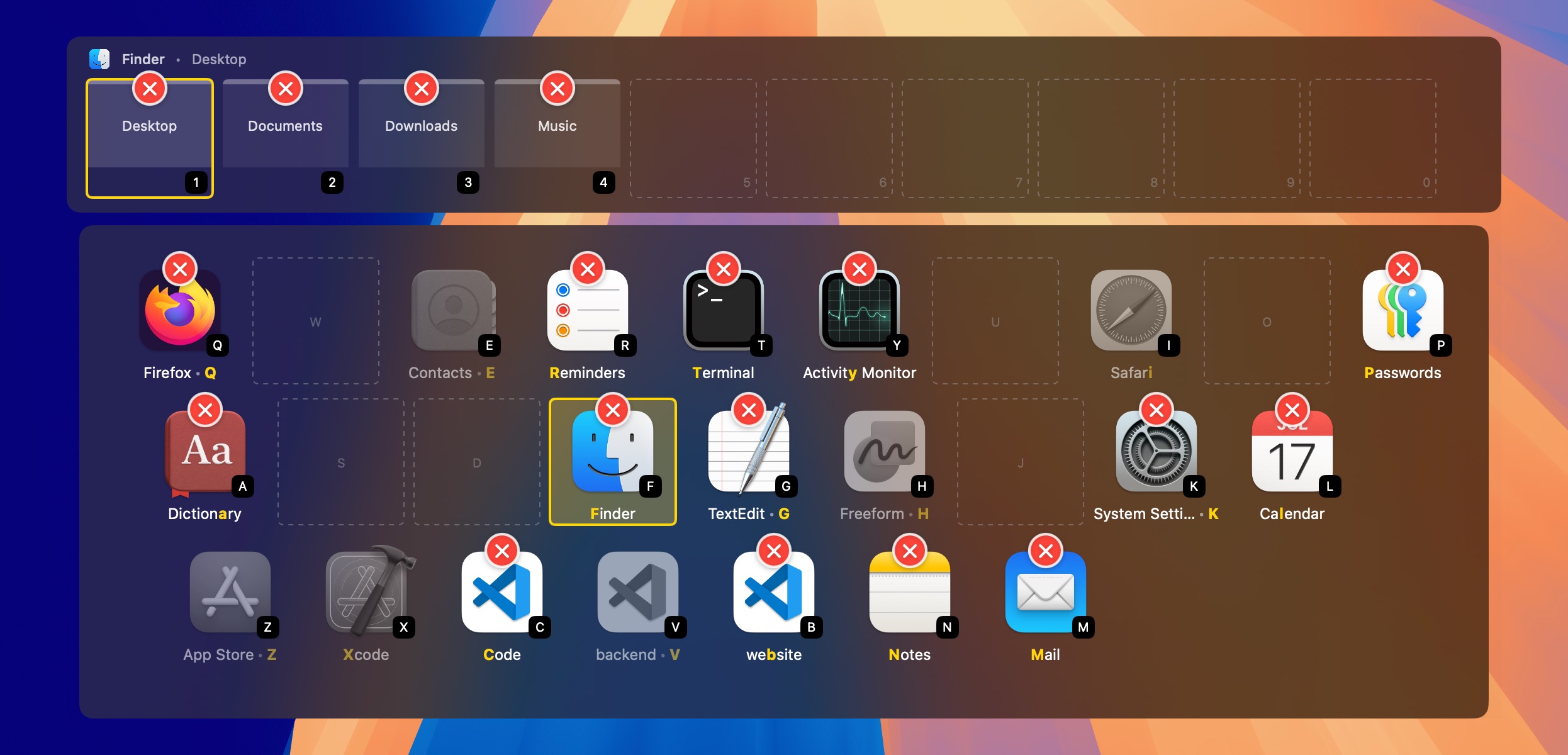
Too many apps open? Switch to close mode and each app's key quits it instead of switching to it, so you can clear your Mac in a few keystrokes. You can also quit any app from its hover action bar.

The overlay in close mode, with a red close button on every running app and on each Finder window

Fast, private, native

An app switcher should not get in your way.

Instant, every time

The overlay is drawn the moment you hold the key. Response time is measured on every release and kept fast, including on older Intel Macs.

Light on your Mac

It uses very little memory and CPU while it waits in the menu bar between switches.

Private by design

Spatial Dock EX does not track how you use it, carries no analytics or advertising SDKs, and needs no account. It goes online only to check for updates and, with a Supporter license, to activate and check that license.

Full detail in the Spatial Dock EX privacy policy.

What users say

I love how the app makes every switch feel instant because the fixed spots and direct keys let muscle memory take over without any thought.
Mac App Store review
Spatial Dock is much faster than any other task switcher I've tried, which is a huge plus since pressing the key combinations is quick.
Reddit user, r/macapps
Committed to your app after only half a day, and nine months after using an alternative.
Reddit user, r/macapps
Works better for me than any of the similar apps I have tried.
Reddit user, r/macapps

Free, with an optional Supporter license

One app. It is free without a license; a Supporter license, or the 14-day trial, unlocks the rest in place.

Free edition

Free, no account

  • The complete core switcher
  • Command+Tab override
  • Keyboard Grid, Edge and Board layouts
  • Close mode for quitting apps
  • Follow System, Light, and Dark themes
  • Settings and docks backup and import

Supporter edition

US$14.99, one-time

  • Everything in the Free edition
  • Window Switcher, with window-title search
  • Project Groups
  • All themes, patterns, background images and appearance overrides
  • Any installed font, with its own text scale
  • App Links, Categories, and custom icons

Try Supporter for 14 days

One trial unlocks the complete Supporter feature set. No account, no payment card, nothing to cancel.

When the trial ends, nothing breaks

The app returns to the free edition and keeps working. Supporter features are paused, not removed, and your settings stay where they are.

Buy the Supporter edition once

The Supporter license is a one-time purchase, not a subscription, entered under Settings → License. It unlocks the copy you already run.

Already bought Spatial Dock on the Mac App Store?

Purchases made before version 1.5.0 redeem a Supporter license for free; 1.5.0 and later are credited in full against the Supporter price. How redemption works →

Download first, decide later

Spatial Dock EX

Built for people who switch apps all day and want switching to feel direct, predictable, and easy to learn. Start with the free edition; upgrade only if you want windows and projects too.

Download Spatial Dock EX
Free edition · Notarized by Apple · No account
Requires macOS Sonoma 14.0 or later

Also on the Mac App Store

Spatial Dock on the Mac App Store is the sandboxed edition, reviewed by Apple and bought and updated through the App Store.

The sandbox does not allow the Accessibility access that the Window Switcher, Project Groups, and the Command+Tab override rely on, so those stay in Spatial Dock EX.